Running powerful artificial intelligence models locally on your personal computer is no longer a luxury reserved for data scientists with expensive hardware. With LM Studio and Llama 3, you can now harness enterprise-grade language model capabilities on even modest computers. This comprehensive guide walks you through everything you need to know to get started, optimized for both beginners and technically experienced users who want to maintain complete privacy and control over their AI workflows.
Understanding Llama 3 and Why It Matters for Local AI
Llama 3 is Meta’s open-source large language model family that has fundamentally democratized access to powerful AI. Released in April 2024, the Llama 3 8B variant represents a significant breakthrough—it delivers performance comparable to older enterprise models while remaining small enough to run on consumer hardware. Unlike cloud-based AI services like ChatGPT or Claude, running Llama 3 locally means your data never leaves your computer, addressing critical privacy and security concerns that plague organizations handling sensitive information.
The Llama 3 family spans multiple sizes, from the lightweight 1B and 3B parameter models optimized for resource-constrained environments to the massive 70B and 405B parameter variants for enterprise applications. The 8B model hits the sweet spot for most users—it’s powerful enough to handle complex tasks while remaining accessible on standard consumer hardware.
Why Local LLMs Are Transforming Computing in 2025
The shift toward local language models represents more than a technical trend; it’s a fundamental reimagining of how AI should be deployed. Research published in 2025 reveals surprising insights about CPU versus GPU inference that challenge conventional wisdom. Studies show that under carefully optimized conditions, CPU inference can match or even exceed GPU performance for smaller models like Llama 3.2-1B, achieving 17 tokens per second on an iPhone 15 Pro—surpassing GPU-accelerated performance at 12.8 tokens per second. This finding has profound implications for users with lower-end hardware who might have assumed GPU acceleration was mandatory.
Hardware Requirements: Practical Reality vs. Theoretical Minimums
Let’s address the elephant in the room: what does your computer actually need to run Llama 3 8B effectively?
For Windows and Linux Systems
Minimum Viable Setup:
- Processor: Intel Core i5 or AMD Ryzen 5 (with AVX2 instruction set support)
- RAM: 16GB system RAM (8GB technically possible with aggressive optimizations)
- GPU: 4-6GB dedicated VRAM recommended; NVIDIA RTX 3050, 3060, or AMD equivalent
- Storage: 20GB free SSD space (NVMe preferred for faster model loading)
- Operating System: Windows 10/11 or Ubuntu 20.04+
Recommended for Smooth Operation:
- Processor: Intel Core i7 12th Gen or AMD Ryzen 7 5000 series (8+ cores)
- RAM: 32GB DDR4/DDR5
- GPU: 8-12GB VRAM (RTX 4060, RTX 3060 Ti, or newer)
- Storage: 500GB+ NVMe SSD
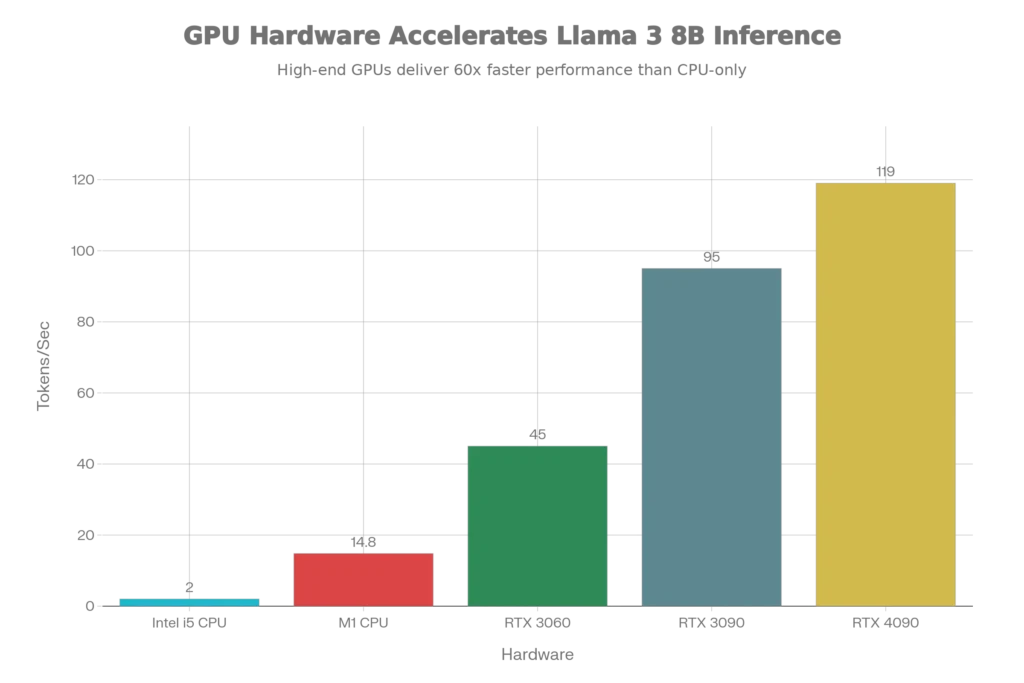
Real-world testing confirms that even Intel i5 systems from 2015-2018 can run quantized Llama 3 8B, though inference speed drops to approximately 2-3 tokens per second without a dedicated GPU.
For macOS (Apple Silicon)
Apple’s M-series processors create a unique advantage for local LLM inference. The unified memory architecture means your entire system RAM is available to the model:
- Minimum: Apple Silicon (M1, M2, M3, M4); 8GB RAM
- Recommended: M3 Pro/Max or newer; 16GB+ unified memory
- Performance Reality: M1 Max achieves 14.8 tokens/second; M4 reaches 45+ tokens/second
macOS users running LM Studio benefit from optimized Metal framework support, making Apple computers exceptionally cost-effective for local AI work.
Installing LM Studio: Step-by-Step Guide
LM Studio’s greatest strength is its simplicity. Unlike terminal-based tools that require coding knowledge, LM Studio presents everything through an intuitive graphical interface.
Step 1: Download and Install LM Studio
- Visit lmstudio.ai and download the version matching your operating system
- Windows/Linux: Run the installer and follow standard installation prompts
- macOS: Download the
.dmgfile, drag LM Studio to Applications folder - First launch takes 30-60 seconds as the application initializes its neural network libraries
- Grant any necessary permissions for GPU acceleration (NVIDIA CUDA or AMD ROCm)
No technical configuration is required at installation—LM Studio auto-detects your hardware and applies optimal settings.
Step 2: Navigate the LM Studio Interface
The application features five primary sections:
- Discover Tab: Browse 1,000+ pre-configured models from Hugging Face. Search by model name (e.g., “Llama 3”) to see available variants
- Chat Tab: Intuitive conversation interface with your downloaded models
- Playground Tab: Advanced settings for experimentation, including temperature (creativity), top_p (diversity), and context window configuration
- Local Server Tab: Runs an OpenAI-compatible API endpoint on your machine, enabling integration with other applications
- Settings & Library: Manage downloaded models, configure GPU acceleration, adjust quantization preferences
Downloading and Running Llama 3 8B
Finding the Right Model Variant
Not all Llama 3 8B variants are equally suitable for low-end systems. The format and quantization level determine both memory requirements and performance:
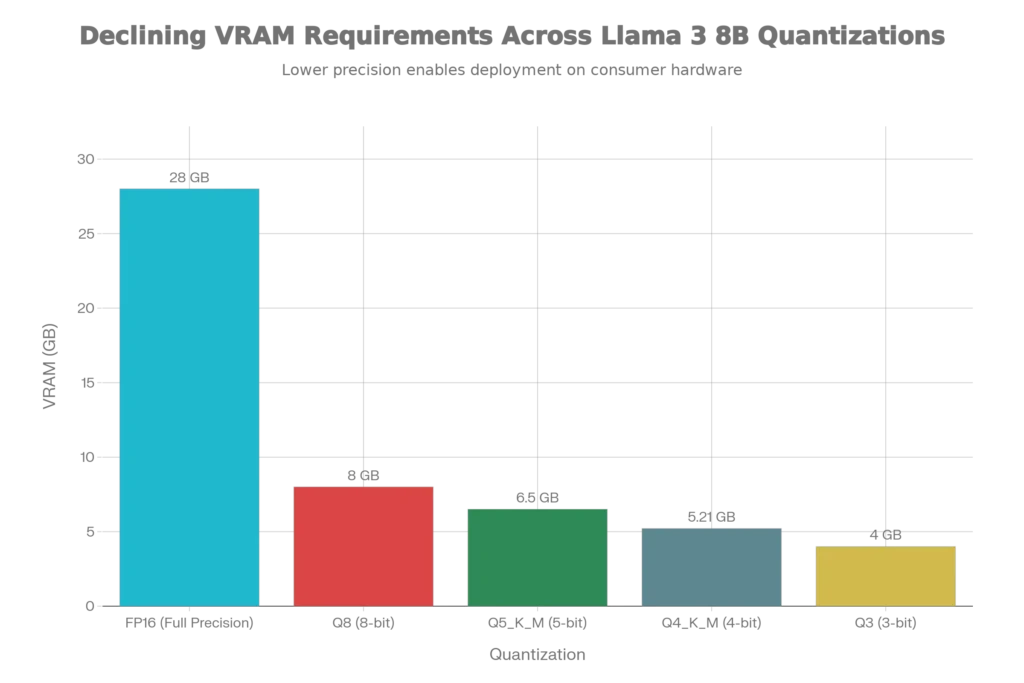
Quantization Explained: Quantization is a compression technique that reduces numerical precision without destroying model intelligence. An 8B model in full FP16 precision requires 28GB VRAM, but 4-bit quantization (Q4_K_M format) reduces this to just 5.21GB. This dramatic difference is what makes running Llama 3 on consumer hardware possible.
Recommended Model Selections by Hardware
For systems with 6-8GB VRAM:
- Download
Llama-3-8B-Instruct-Q4_K_M.gguf(approximately 5.5GB) - Achieves 45-50 tokens/second on RTX 3060
- Maintains 99.3% relative performance compared to full precision
For systems with 8-12GB VRAM:
Llama-3-8B-Instruct-Q5_K_M.gguf(6.5GB) – slightly better quality, slightly slower- Supports longer context windows without overflowing to system RAM
For CPU-only systems (no GPU):
Llama-3-8B-Q4_K_M.ggufworks, but expect 2-5 tokens/second on modern CPUs- Increase system RAM to 32GB+ for comfortable operation
Download Process in LM Studio
- Click Discover Tab
- Search for “Llama 3 8B Instruct”
- Select the Q4_K_M variant (best balance for low-end systems)
- Click download icon; track progress in the status bar
- Download completes in 5-15 minutes depending on internet speed
- Model automatically moves to your library
Memory Management: Understanding VRAM vs. RAM Overflow
This is critical: what happens when a model exceeds your GPU’s VRAM?
LM Studio’s Intelligent Offloading: When a model’s file size exceeds available VRAM, LM Studio can automatically shuffle unused layers into system RAM. This allows you to run larger models, but with a severe performance penalty—tests show 30x slower inference when models overflow into system RAM.
Practical Memory Configuration
For an RTX 3060 (12GB VRAM) running Llama 3 8B Q4_K_M:
| Component | Memory Usage |
|---|---|
| Model weights | ~5.5GB |
| KV cache (context storage) | ~2.1GB |
| GPU overhead | ~0.5GB |
| Safe headroom | ~3.9GB |
You can comfortably fit this configuration. However, pushing to Llama 3 70B Q4 (40GB+) on the same system forces significant offloading and makes responses sluggish.
Pro Tip: Reduce context window size (from 8K to 4K tokens) in settings to decrease KV cache memory requirements by approximately 40%, enabling faster inference on tight VRAM budgets.
Running Your First Chat: Configuration for Optimal Performance
Click the Chat tab and select your downloaded model from the dropdown menu. Before your first conversation, optimize these settings:
Essential Configuration Parameters
Temperature (0.1-1.0):
- 0.1-0.3: Precise, factual responses (best for coding, technical questions)
- 0.7: Balanced creativity and coherence (default, recommended)
- 0.9-1.0: Creative, unpredictable responses (storytelling, brainstorming)
Top_P (0.1-1.0): Controls diversity of word selection. Lower values produce more focused, repetitive text. 0.9 is default and generally effective.
Max Tokens: Set to 512-1024 for typical queries. Higher values require more memory and longer generation time.
GPU Layers (GPU offloading): If your VRAM permits, increase this to run all model layers on GPU rather than CPU. LM Studio shows a slider for this—maximize it if you have headroom.
First Inference Speed Expectations
Your initial response will be slower than subsequent ones:
- First Token Latency (time to first response): 2-8 seconds on GPU-accelerated systems, 10-30 seconds on CPU
- Subsequent Tokens: Should generate at 20-50 tokens/second on RTX 3060 with Q4 quantization
If you’re seeing 1-5 tokens/second on a GPU, your configuration is suboptimal—check that GPU acceleration is enabled in settings.
Quantization Deep Dive: Choosing Quality vs. Speed
Understanding quantization is essential for getting the best performance from your hardware. This is where most users make mistakes that result in disappointment.
Quantization Formats and Their Tradeoffs
[Table: Quantization Comparison]
| Format | File Size | VRAM Needed | Quality Loss | Speed | Best Use |
|---|---|---|---|---|---|
| FP16 | 28GB | 28GB+ | None (baseline) | Slowest | Not practical for low-end PCs |
| Q8 | 8GB | 8GB | ~3-5% | Fast | Highest quality requirement |
| Q5_K_M | 6.5GB | 6.5GB | ~5-8% | Good | Balanced, recommended |
| Q4_K_M | 5.5GB | 5.5GB | ~8-12% | Very Good | Best for low-end systems |
| Q3_K_M | 4.5GB | 4.5GB | ~15-20% | Fastest | Extreme constraints only |
The K-quant family (Q4_K_M, Q5_K_M) represents the latest quantization advancement, using blockwise optimization that preserves up to 2-4x better precision than older techniques. This explains why Q4_K_M performs so well despite aggressive compression.
Real-World Quality Comparison
According to multiple benchmarks from 2025, Llama 3 8B at Q4_K_M quantization achieves 99.3% relative performance compared to the full FP16 version in standard NLP tasks. The quality difference is perceptually undetectable for most use cases. However, on specialized benchmarks requiring extreme precision:
- Q8 quantization: Minimal MMLU benchmark degradation (~1%)
- Q4_K_M quantization: ~8% MMLU degradation
- Q3 quantization: ~20%+ degradation (avoid unless necessary)
Quantization Recommendations by Use Case
Content Writing & General Chat: Use Q4_K_M or Q5_K_M. Quality is excellent for creative work; minor precision loss is imperceptible.
Coding & Technical Tasks: Prefer Q5_K_M or Q8. Code generation is surprisingly sensitive to quantization artifacts; the extra precision prevents subtle bugs.
Data Analysis & Research: Stick with Q8 or higher. Numerical accuracy matters when analyzing data or citing statistics.
Single-Use Experimentation: Q4_K_M is perfectly adequate; you don’t need premium settings for one-off tests.
Running Llama 3 Without a GPU: CPU-Only Solutions
Can You Actually Use CPU-Only?
Yes, but with caveats. A modern multi-core processor can run quantized Llama 3 8B acceptably:
- Intel i7 12th Gen CPU (8 cores): Approximately 5-8 tokens/second
- AMD Ryzen 7 5800X (8 cores): Approximately 4-6 tokens/second
- Intel i5 (6 cores): Approximately 2-3 tokens/second
These speeds are usable for non-interactive tasks like batch processing, but not for real-time conversation. Typical ChatGPT-like responsiveness requires at minimum 15-20 tokens/second.
Optimizing CPU-Only Setups
If you’re stuck with CPU inference:
- Increase system RAM to 64GB+: CPU inference is bandwidth-limited; faster DDR5 and larger capacity significantly boost performance
- Use advanced CPU instructions: Ensure your processor supports AVX2, AVX-512, or M1/M2 equivalents. Older CPUs bottleneck hard
- Reduce context window: Smaller context windows decrease memory bandwidth requirements
- Run lighter models: Consider Qwen 3 MoE variants or Mistral-7B instead; they’re faster on CPU despite similar parameter counts due to efficiency optimizations
- Enable mmap (memory mapping): LM Studio defaults enable this; it speeds up CPU inference by approximately 40%
Privacy and Security: Why Local Inference Matters
Running Llama 3 locally eliminates a critical concern plaguing cloud AI: data privacy.
What Stays on Your Machine
When you use LM Studio:
- Chat history: Never uploaded to any server. If you clear your application cache, it’s gone
- Uploaded documents: Remain local. LM Studio’s RAG (Retrieval Augmented Generation) processes documents entirely on your machine
- Model weights: Downloaded once, stored locally, never transmitted
- API requests: If you run the local server, API calls go to localhost (127.0.0.1), never crossing the network
Offline Capability
LM Studio operates completely offline after initial model download. This is revolutionary for:
- Healthcare professionals analyzing patient data without HIPAA compliance concerns
- Legal teams discussing confidential documents
- Financial analysts working with proprietary market data
- Remote workers in areas without reliable internet
During 2025 research, field teams in remote locations confirmed they could conduct uninterrupted AI experiments using LM Studio’s offline functionality.
Enterprise Security Considerations
Organizations implementing Llama 3 locally should:
- Store model files on encrypted drives
- Restrict access to systems running LM Studio
- Audit API endpoints if integrating with other applications
- Use environment-specific quantizations (smaller models for less-sensitive tasks)
Advanced Features: Making the Most of LM Studio
Running Multiple Models Simultaneously
LM Studio’s 2025 update allows concurrent model execution—perfect for comparison or specialized workflows. You can run a small 3B model for quick tasks while keeping an 8B model available for complex reasoning.
Configuration:
- Local Server Tab → Enable multiple model loading
- Assign different GPU layers to different models (if VRAM permits)
- API clients can specify which model to query
This is impossible with cloud APIs without additional cost.
Building RAG Applications (Retrieval Augmented Generation)
RAG lets models reference your documents while responding:
- Click Chat tab → drag and drop a PDF or text file
- LM Studio automatically chunks and processes the document
- Models answer based on document context, reducing hallucinations
- Entire process stays local—your documents remain private
Perfect for:
- Analyzing product documentation
- Extracting information from contracts
- Answering questions about proprietary research
Local API Server Integration
Enable the local server to integrate Llama 3 with other applications:
- Local Server Tab → set port (default 8000)
- Configure CORS if integrating with web applications
- Use standard OpenAI API clients (code remains compatible with ChatGPT APIs)
This enables integration with:
- VS Code extensions
- Custom Python scripts
- Web applications
- Mobile apps via local network
Troubleshooting Common Issues
“Not enough VRAM” Error
Solution:
- Download a smaller quantization (Q4_K_M instead of Q5_K_M)
- Reduce GPU layers slider in settings
- Decrease context window from 8K to 4K tokens
- If all else fails, enable CPU offloading (slower but functional)
Extremely Slow Inference (1-2 tokens/second)
Diagnose:
- Check GPU utilization in Task Manager/Activity Monitor—should be >80% if GPU-accelerated
- If CPU usage is maxed out and GPU idle, GPU acceleration isn’t working
- Reinstall NVIDIA CUDA drivers or AMD ROCm
Solution:
- Remove and re-download the model (corrupt file possible)
- Update LM Studio to latest version (2025 releases have significant speed improvements)
- Check that your GPU isn’t being used by other applications (Chrome, video editors)
Model Won’t Load
Common Causes:
- File is corrupted (re-download)
- GPU driver needs updating
- Model format is incompatible with your version of LM Studio
Solution:
- Verify model file size matches expected (check HuggingFace listing)
- Try loading via Local Server with verbose logging enabled
- Switch to CPU-only mode temporarily to isolate GPU driver issues
Chat Crashes After 5-10 Exchanges
Root Cause: Context window exceeded available memory
Solution:
- Reduce context window in Playground settings from 8K to 4K
- Clear chat history between conversations
- Close other applications to free VRAM
Benchmarking Your Setup: Measuring Real Performance
Don’t trust theoretical specifications—measure your actual system:
Simple Speed Test
- Use this prompt: “Write a 500-word essay about the history of artificial intelligence”
- Start timer when model begins generating
- Count how many tokens are generated (roughly 130-150 words = 100 tokens)
- Divide tokens by elapsed time = your tokens/second
Expected Results by Hardware
- Entry-level laptop (i5, GTX 1650, 8GB): 10-15 tokens/second
- Mid-range desktop (i7, RTX 3060, 16GB): 40-60 tokens/second
- High-end system (i9, RTX 4090, 32GB+): 100-150 tokens/second
- M1 Max MacBook: 25-35 tokens/second
- CPU-only (no GPU): 2-5 tokens/second
If your results significantly underperform these benchmarks, suspect GPU driver issues or improper quantization settings.
Comparing LM Studio to Alternatives in 2025
LM Studio isn’t the only option for local LLM inference, but 2025 benchmarking reveals specific advantages:
| Aspect | LM Studio | Ollama | Jan AI |
|---|---|---|---|
| Ease of Use | GUI-based, beginner-friendly | CLI, steeper learning curve | GUI, newer, less stable |
| Speed | Good; GUI overhead (72.8 t/s) | Fastest; optimized CLI (85.2 t/s) | Average; still in development |
| Features | RAG, Multi-model, API server | Fast inference focused | Chatbot focus |
| Privacy | Complete local processing | Complete local processing | Complete local processing |
| Hardware Support | NVIDIA, AMD, Apple Silicon | NVIDIA, AMD, Apple Silicon | NVIDIA, AMD, Apple Silicon |
| Learning Curve | Minimal | Moderate-to-high | Minimal |
Verdict for Low-End Systems: LM Studio wins for ease of use; Ollama wins for maximum speed if you tolerate CLI workflows.
Getting Started Today: Your Implementation Path
Week 1: Setup and Familiarization
- Day 1-2: Download and install LM Studio on your system
- Day 2-3: Download Llama 3 8B Q4_K_M model (~5.5GB, takes 10-15 minutes)
- Day 3-7: Spend several hours exploring different prompts, adjusting temperature/top_P settings, noting response quality
Week 2-4: Building Practical Applications
- Create a personal knowledge base by uploading documents into RAG
- Experiment with the local API server for integration with other tools
- Benchmark your exact performance numbers
- Identify tasks where local inference replaces your current cloud AI workflows
Month 2+: Advanced Use Cases
- Fine-tune Llama 3 with LoRA adapters for domain-specific knowledge
- Build production applications using the OpenAI-compatible API
- Explore running multiple models for comparison workflows
- Contribute findings to the local LLM community
Future of Local LLMs: 2025 and Beyond
The trajectory of local AI is accelerating. As of late 2025:
- Smaller models are becoming smarter: Llama 3 3B now achieves performance comparable to Llama 2 70B from two years ago
- Quantization is improving: New quantization techniques (IQ-quants, hybrid precision) maintain FP16 quality at Q3 (3-bit) compression levels
- Hardware efficiency is paramount: Future LLMs will be designed for local inference from the ground up, not adapted afterward
- Edge deployment is expanding: Manufacturers are integrating LLM inference directly into consumer devices
Running Llama 3 locally today positions you at the forefront of this revolution—no longer dependent on expensive cloud APIs, no longer concerned about data privacy, no longer limited by internet connectivity.
Conclusion
Llama 3 8B running on LM Studio represents a inflection point in AI accessibility. What once required enterprise hardware and cloud subscriptions is now available to anyone with a modest computer. The combination of open-source models, efficient quantization techniques, and intuitive software like LM Studio has fundamentally democratized artificial intelligence.
Whether you’re a content creator seeking private writing assistance, a developer building AI-integrated applications, or simply someone concerned about data privacy, running Llama 3 locally is not just possible—it’s practical. Start with the setup in this guide, expect excellent results within hours, and join thousands of users discovering that local AI isn’t a limitation; it’s a liberation.
Read More:Is Your Data Safe? Why You Should Stop Using Public AI for Work
Source: K2Think.in — India’s AI Reasoning Insight Platform.